Give your accountant view-only access to a wallet
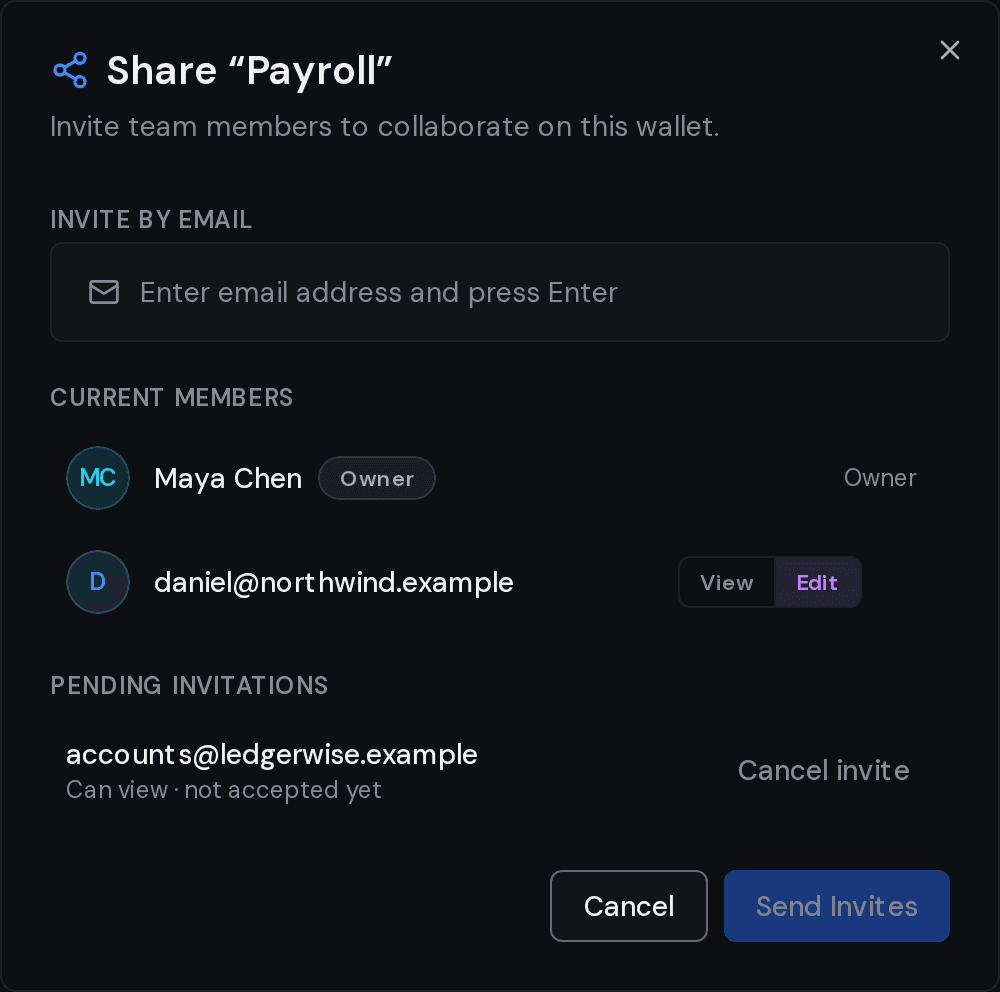
Invite someone to a wallet by email and choose view or edit access. They see that wallet's transactions, categories and descriptions; they do not see your other wallets.
How it works
- Step 1
Share the wallet
Open the wallet's Share dialog, enter an email address and choose view or edit.
- Step 2
They accept
The person gets an email and accepts the invitation; the wallet then appears under Shared with me.
- Step 3
Change it at any time
The owner can change a member's access or remove them, and a member can leave.
Limits and formats
| View | Sees the wallet's transactions, categories and descriptions |
|---|---|
| Edit | Also writes descriptions and sets categories |
| Who invites | Only the wallet's owner |
| Team members per wallet | Free: 1 team member per wallet; Pro: Up to 5 team members per wallet. Pending invitations count |
What it does not do
- Access is given per wallet; there is no role across the whole account.
- Members do not see the owner's contact names.
Questions
Does the person I invite need a paid plan?
No. The limit on team members comes from the plan of the wallet's owner.
Does an invitation expire?
Yes. An invitation that is not accepted expires, and the owner can send it again.
Can my accountant get the books as a file?
Yes. Anyone who can see the wallet can export its transactions as CSV.
Related pages
- CSV exportDownload transactions, contacts, the wallet summary and analytics as CSV files with fixed columns, for your accountant.
- TransactionsEvery transfer typed as income, expense, internal transfer or swap. Search by description, address, hash, category, contact or amount, and label in place.
- AccountantsHow an accountant gets read-only access to clients' USDT and USDC wallets, sees several clients in one login, and exports CSV with fixed columns.
- Crypto bookkeeping for a small businessCrypto bookkeeping for a small business as a monthly routine: what to set up first, the steps of each month, and what your accountant receives.